Simple Laptop Cooling Tips Experts Recommend to Prevent Overheating and Improve Performance
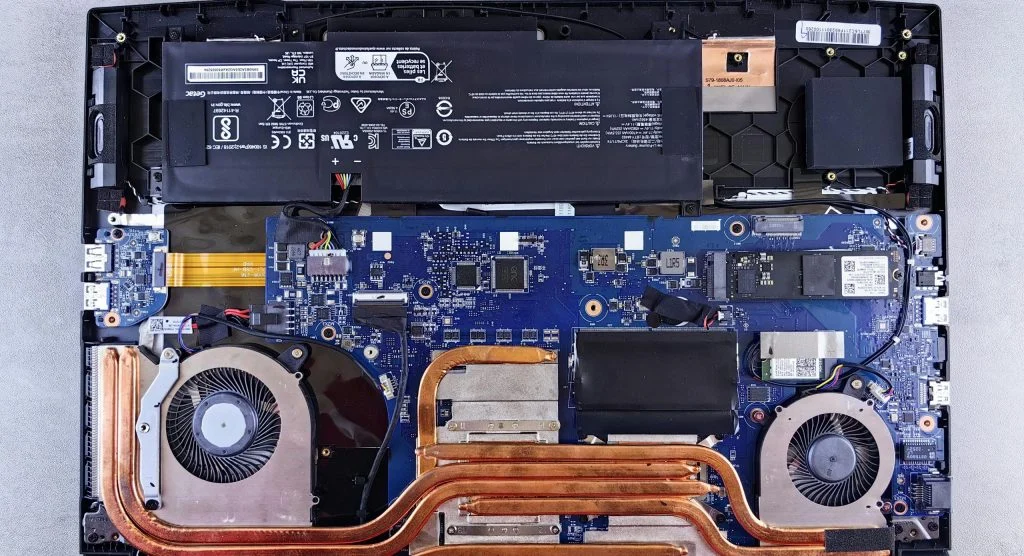
Laptop on a cooling pad to prevent overheating

Laptop cooling tips help prevent overheating and keep performance running smoothly. Excess heat can slow down a system, reduce efficiency, and even shorten a device’s lifespan.

Technology experts explain that proper airflow and regular maintenance are essential for keeping laptops cool. A few simple steps can make a noticeable difference in reducing heat and improving performance.

Why Laptop Cooling Tips Are Important

Laptops naturally generate heat during use, especially when handling demanding tasks. Without proper cooling, internal components can become too hot.

Experts note that managing heat effectively helps protect hardware and ensures more stable, reliable performance.

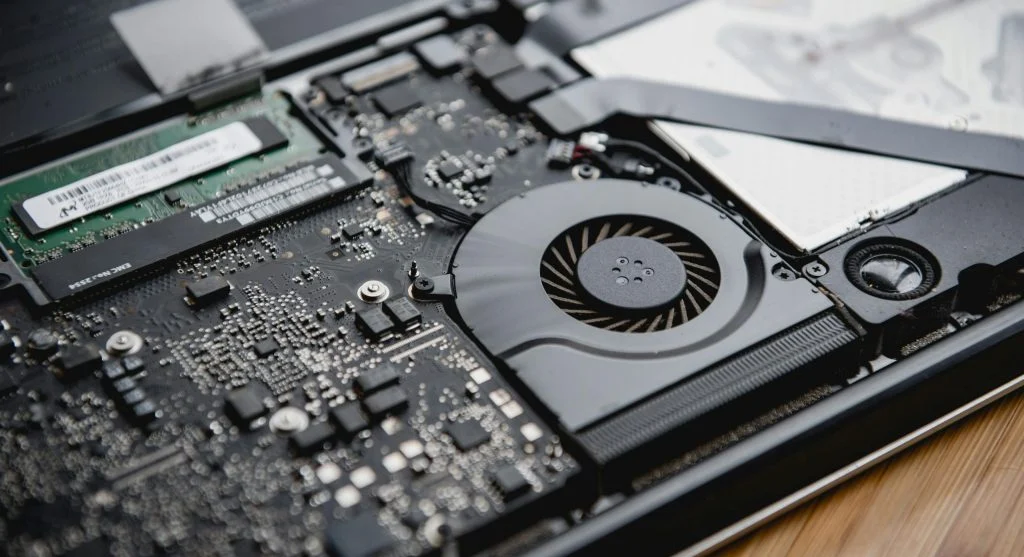
Laptop cooling tips: cleaning vents to improve airflow

Credit: KIEU TRUONG / Pexels

How to Keep Laptops Cool with Simple Steps

Keeping a laptop cool mainly comes down to improving airflow and reducing heat buildup.

Step 1: Keep Air Vents Clean

Dust can block vents and restrict airflow, leading to overheating. Cleaning the vents regularly helps maintain proper cooling.

Step 2: Use Laptop on Hard Surfaces

Soft surfaces like beds or cushions can block airflow. Placing your laptop on a flat, hard surface allows heat to dissipate more effectively.

Step 3: Avoid Using Laptops in Hot Environments

High ambient temperatures can make overheating worse. Using your laptop in a cooler environment helps maintain better performance.

Use Cooling Pads for Extra Support

Cooling pads add extra airflow with built-in fans, helping to keep temperatures down during heavy use.

Experts recommend using cooling pads for activities like gaming or extended work sessions.

Close Unnecessary Programs

Running too many programs at once increases the workload on the processor, which generates more heat. Closing unused apps can help reduce this.

Experts suggest managing active tasks to keep the system running efficiently.
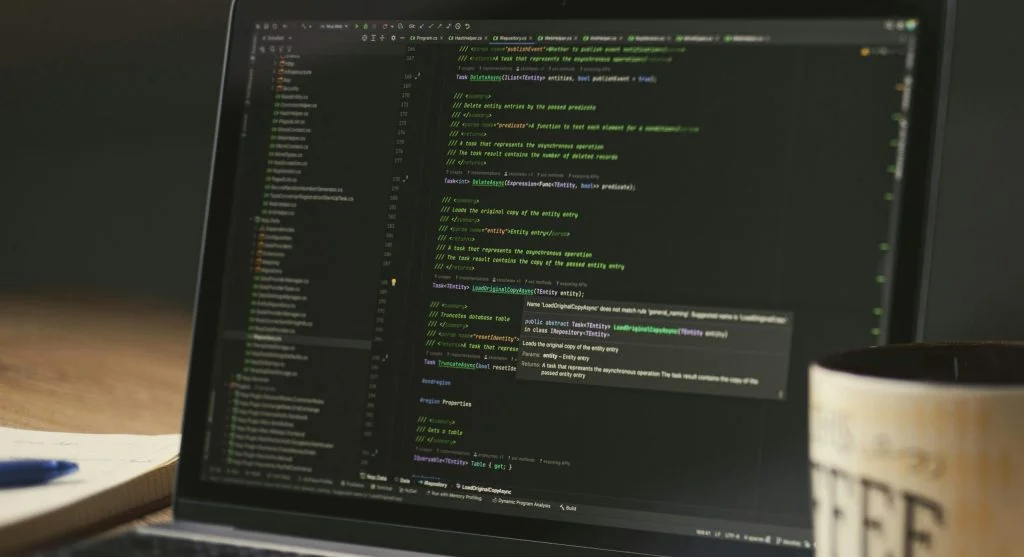
Laptop with cooling vents and a task manager window showing closed programs

Credit: Daniil Komov / Pexels

Update Software to Improve Efficiency

Software updates often include performance improvements that help reduce unnecessary strain on hardware.

Experts recommend keeping your system up to date to support better heat management and smoother operation.

Adjust Power Settings to Reduce Heat

Power settings determine how much energy your laptop uses. Lower power modes can help reduce heat generation.

Experts suggest using balanced or power-saving modes whenever possible to keep temperatures under control.

Laptop with overheating warning and power settings adjustment

Credit: Matheus Bertelli / Pexels

When to Seek Professional Cleaning

Dust can build up inside the laptop over time, blocking airflow and affecting cooling performance. In such cases, professional cleaning may be necessary to restore proper ventilation.

Experts recommend seeking professional maintenance if overheating continues despite basic troubleshooting.

Frequently Asked Questions

Q: What are the best laptop cooling tips?
A: Cleaning vents, using cooling pads, and managing programs are effective methods.

Q: Why do laptops overheat?
A: Dust buildup, blocked vents, and heavy usage can cause overheating.

Q: Do cooling pads help?
A: Yes, they improve airflow and reduce heat during extended use.

Q: Should laptops be used on beds?
A: No, soft surfaces can block airflow and increase heat.

Key Takeaway

Laptop cooling tips play an important role in preventing overheating and keeping performance stable. Simple steps like cleaning vents, using the laptop on proper surfaces, and managing running tasks can help reduce heat buildup. Experts agree that regular cooling practices not only improve efficiency but also extend the lifespan of the device.

Share this content:

Post Comment