Simple Smartphone WiFi Fix Tips Experts Recommend to Solve Slow or Not Connecting Issues
WiFi problems are among the most common frustrations smartphone users experience. Whether it’s slow internet speeds, frequent disconnections, or difficulty connecting to a network altogether, these issues can interfere with everyday activities such as browsing the web, streaming videos, attending online meetings, or staying connected with family and friends.
Many people immediately assume that poor internet performance is the fault of their service provider. While that can sometimes be true, the problem is often caused by smartphone settings, temporary software glitches, or simple network-related issues that can be resolved in just a few minutes.
By following a few practical smartphone WiFi fix tips, users can often identify the source of the problem and restore a stable connection without needing advanced technical skills.
Why WiFi Issues Happen on Smartphones
WiFi connectivity problems can occur for a variety of reasons. In some cases, the issue is related to the wireless network itself. In others, the smartphone may be causing the problem.
Some of the most common causes include:
- Weak WiFi signal strength
- Temporary software or system glitches
- Incorrect network configurations
- Router performance issues
- Network congestion from multiple connected devices
Understanding what might be causing the problem is often the first step toward finding the right solution.
Restart Your Phone and Router
One of the easiest and most effective troubleshooting steps is simply restarting both your smartphone and your WiFi router.
A restart can:
- Refresh network connections
- Clear temporary software bugs
- Improve connection stability
- Resolve minor communication errors
Turn off your smartphone for a few seconds before restarting it. Then unplug your router, wait about 30 seconds, and power it back on. Once both devices reconnect, check whether the issue has been resolved.
Check WiFi Signal Strength
Signal strength plays a major role in connection quality. Even a fast internet plan can feel slow if the WiFi signal reaching your phone is weak.
Poor signal strength can result in:
- Slow loading times
- Interrupted video streaming
- Frequent disconnections
- Unstable browsing performance
Try moving closer to the router and see if the connection improves. Walls, furniture, and other obstacles can weaken wireless signals, especially in larger homes.
Forget and Reconnect to the WiFi Network
Sometimes a saved WiFi profile becomes corrupted or outdated, leading to connection problems.
Forgetting the network and reconnecting can help:
- Refresh connection settings
- Resolve authentication errors
- Fix network conflicts
- Improve overall connectivity
Open your WiFi settings, select the network, choose “Forget Network,” and then reconnect by entering the password again.
Check Airplane Mode and Network Settings
It may sound obvious, but incorrect settings are often responsible for connectivity issues.
Make sure that:
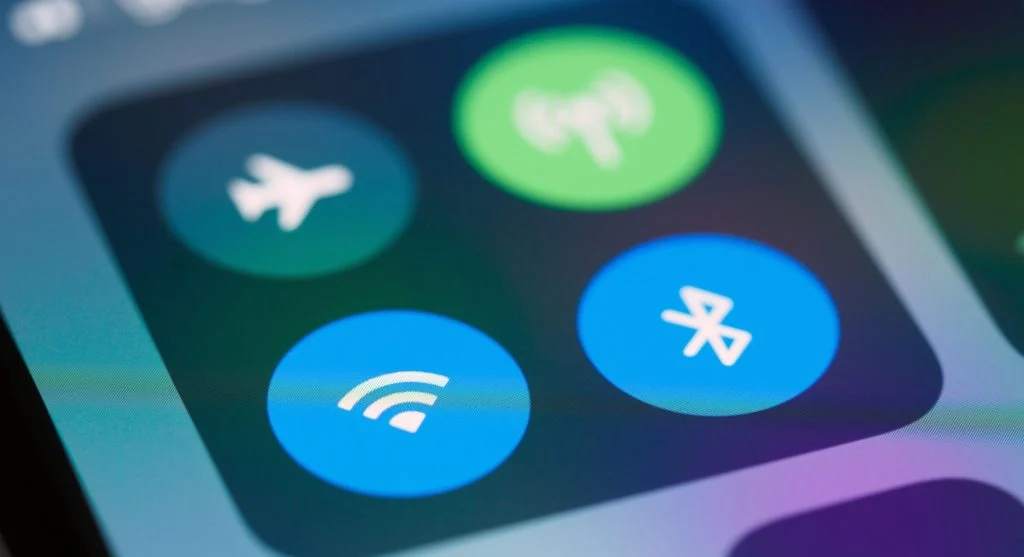
- Airplane mode is disabled
- WiFi is turned on
- Mobile hotspot settings are not interfering
- The correct network is selected
Even a small settings error can prevent a smartphone from connecting properly.
Update Your Smartphone Software
Running outdated software can lead to various connectivity issues. Manufacturers regularly release updates that improve device performance and fix known bugs.
Keeping your smartphone updated can:
- Resolve software-related WiFi problems
- Improve compatibility with modern routers
- Enhance network performance
- Increase overall device stability
Check for available updates in your device settings and install them when possible.
Limit Background Apps Using Internet
Many apps continue using internet data even when they are not actively open. These background processes can consume bandwidth and reduce available network resources.
Excessive background usage may cause:
- Slower internet speeds
- Delayed app performance
- Streaming interruptions
- Reduced browsing responsiveness
Closing unused applications and restricting background data usage can help improve overall WiFi performance.

Reset Network Settings if Problems Continue
If basic troubleshooting does not solve the issue, resetting network settings may help.
A network reset will:
- Remove saved WiFi networks
- Reset Bluetooth and network configurations
- Restore default connection settings
- Fix deeper connectivity problems
After the reset, you will need to reconnect to your WiFi networks, so make sure you know your passwords beforehand.
Avoid Network Overload
The more devices connected to a WiFi network, the more bandwidth is shared among them. If too many phones, tablets, computers, smart TVs, and smart home devices are connected at the same time, performance can suffer.
Network overload can cause:
- Slower speeds
- Connection instability
- Increased latency
- Frequent buffering
Disconnecting devices that are not currently being used can help improve network performance for everyone.
Create a Simple WiFi Maintenance Routine
Preventing WiFi issues is often easier than fixing them after they occur. Establishing a basic maintenance routine can help keep both your smartphone and network running smoothly.
Helpful habits include:
- Restarting your router periodically
- Keeping device software updated
- Monitoring connected devices
- Checking signal strength in frequently used areas
- Reviewing network settings occasionally
These simple steps can reduce the likelihood of future connectivity problems.
Frequently Asked Questions
Q: Why is my WiFi slow on phone?
A: Due to weak signal or background usage.
Q: Can I fix WiFi issues myself?
A: Yes, using simple troubleshooting steps.
Q: Does restarting help?
A: Yes, it fixes many temporary problems.
Q: Should I reset network settings?
A: Yes, if issues continue.
Key Takeaway
Smartphone WiFi fix tips can help resolve many common connection problems without requiring technical expertise. Simple actions such as restarting devices, checking signal strength, updating software, and reviewing network settings can often restore a fast and stable connection. By maintaining your smartphone and network regularly, you can reduce interruptions and enjoy a smoother internet experience for everyday tasks.
Share this content:












Post Comment